Share an assessment with your class
Let students join an assessment you have saved for testing, then copy its invitation, link or code for your class.
Start on Your Assessments with your assessment marked Ready to share under Not shared yet. Your saved changes are kept by autosave, but students cannot see the assessment until you share it.
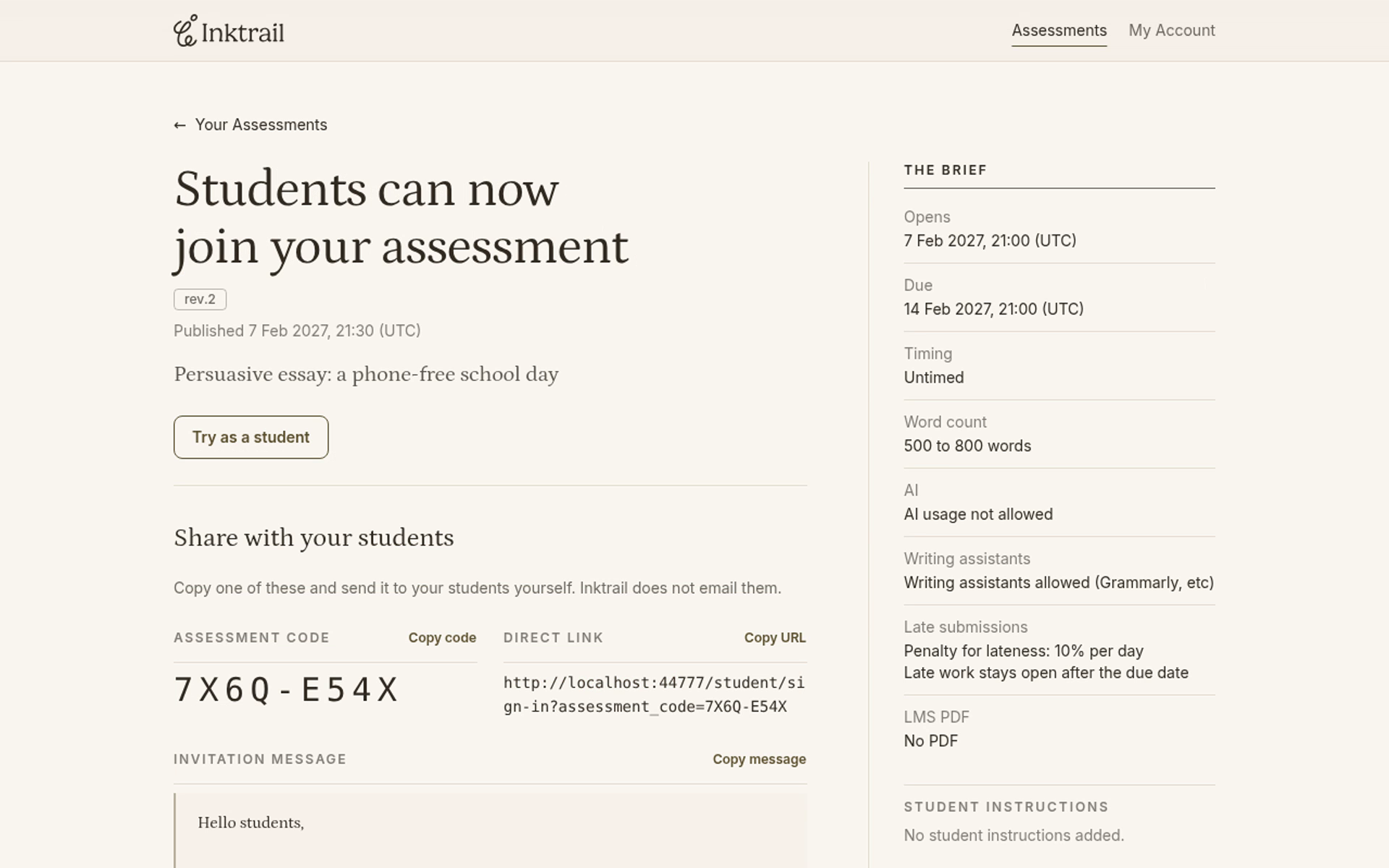
1. Let students join
Select the assessment name, then Share with my students. The page says Students can now join your assessment and shows Share with your students.
The screenshots come from a test server, so the link shows a test address; your link will show your school's Inktrail address.
2. Copy the invitation message
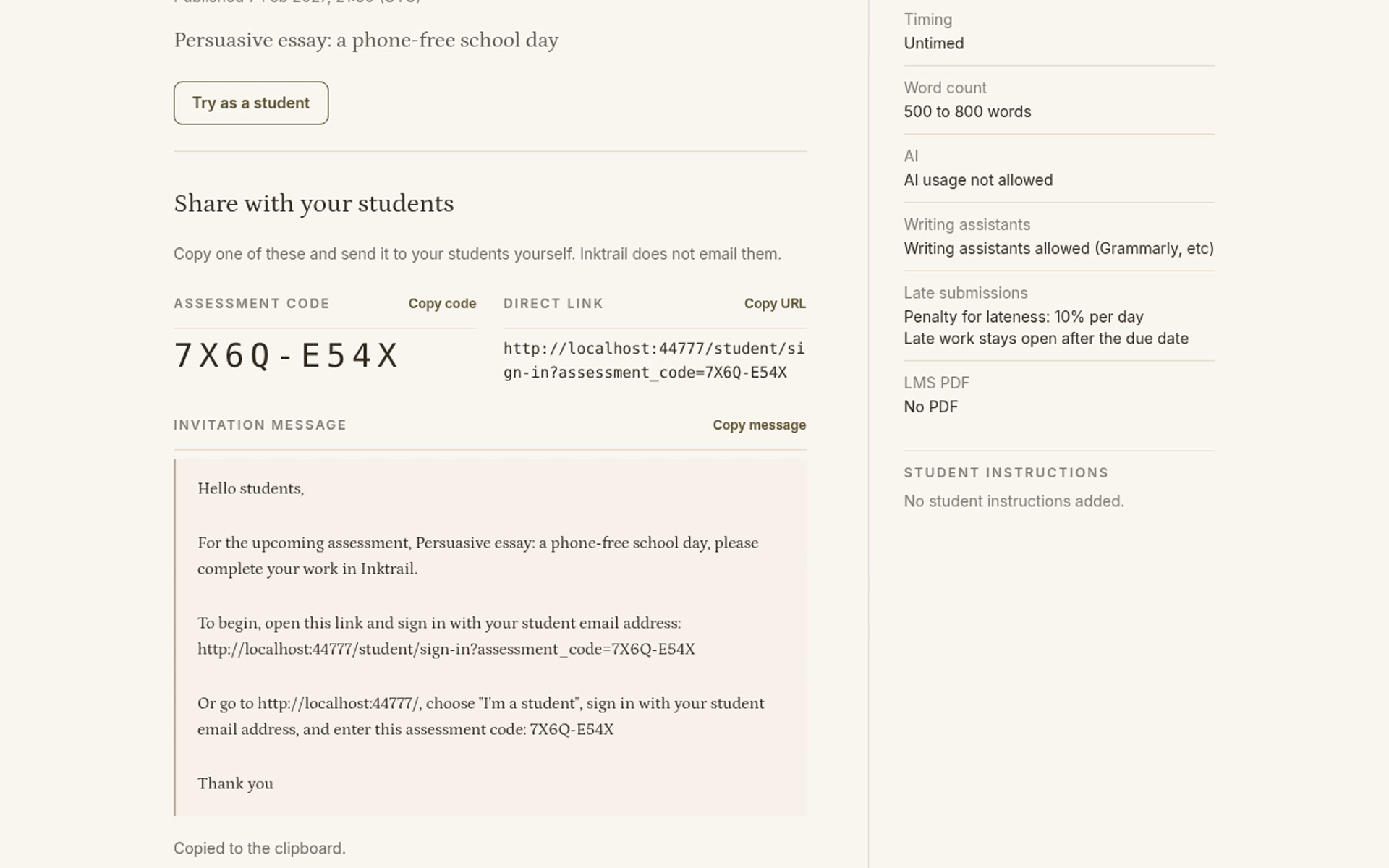
Select Copy message, then scroll down to read the Invitation message. It includes your assessment name, a direct link and the assessment code. The page confirms Copied to the clipboard.
You send the copied invitation through your usual class channel, such as your LMS. Inktrail does not email students when you copy it. Sending through your class channel is outside these screenshots.
3. Get just the link or code later
Return to Your Assessments and select Share beside your assessment. Select Copy URL for just the direct link. Press Escape to close the dialog.
You can also select the assessment name, then Share with students. Select Copy code for just the Assessment code, which students enter after signing in. The same invitation, link and code are available from either share dialog.
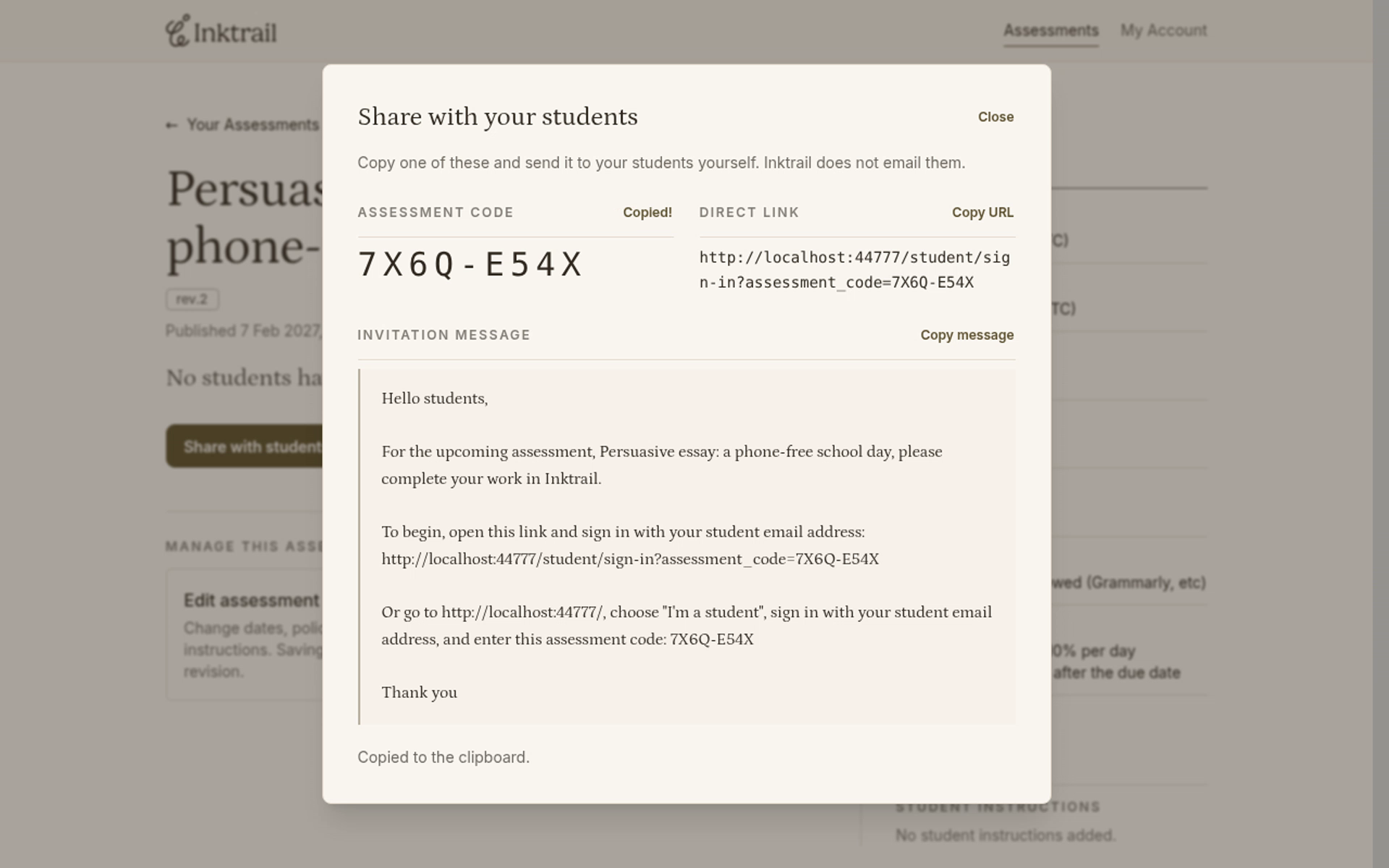
Your assessment is shared, and its invitation, link and code are available to give to your class.