Change instructions after students have started
Clarify a live assessment and send the new instructions to students who can still work on it, without replacing their starting rules or saved writing.
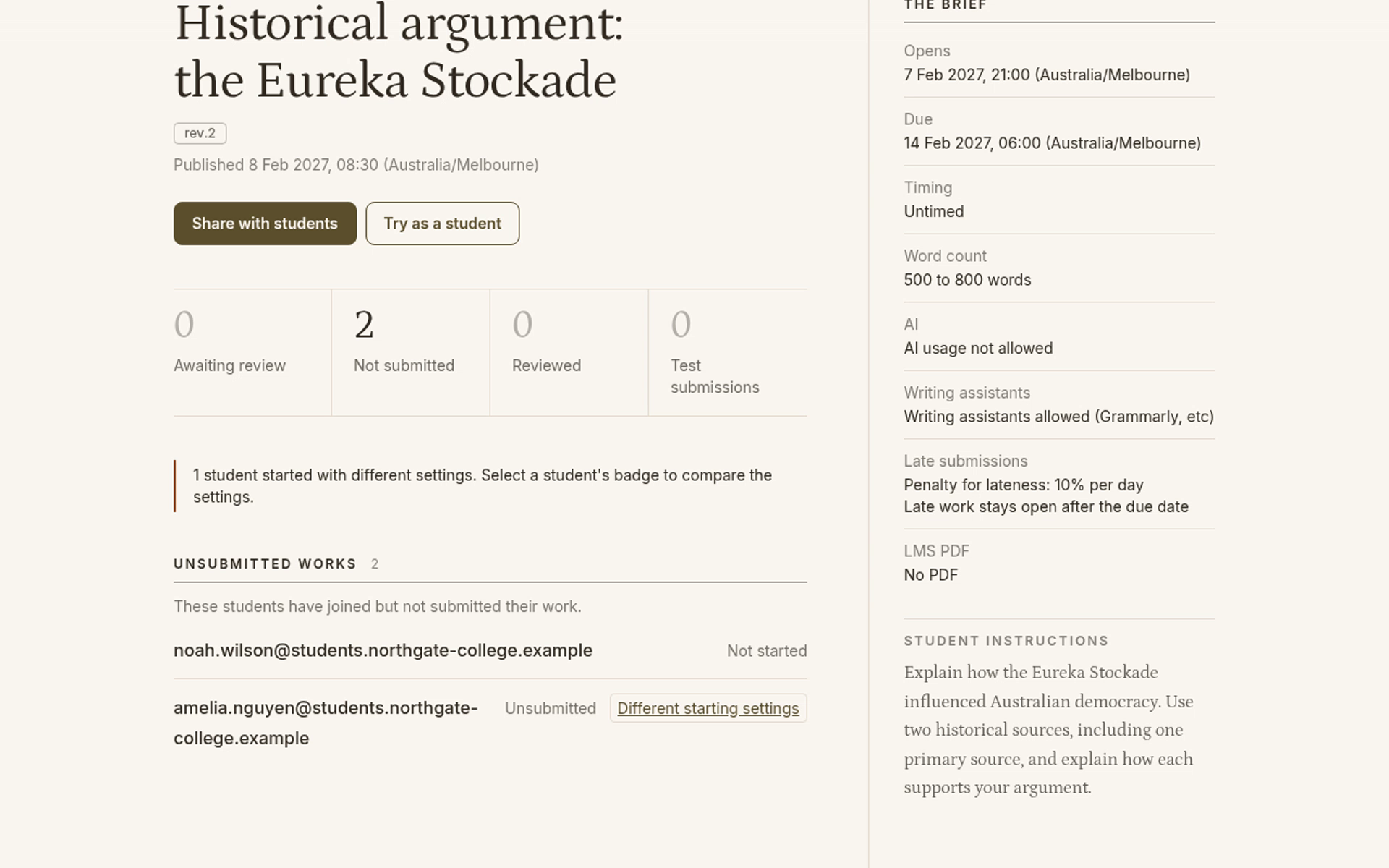
This example changes a History task to ask for a primary source. One student has started; another has joined but not started.
1. Open the assessment for editing
On Your Assessments, open the shared assessment. Under Manage this assessment, select Edit assessment.
This published-assessment edit form does not autosave like the draft wizard. Keep it open until you review and publish. Students see no changes until you select Publish updates.
2. Clarify the student instructions
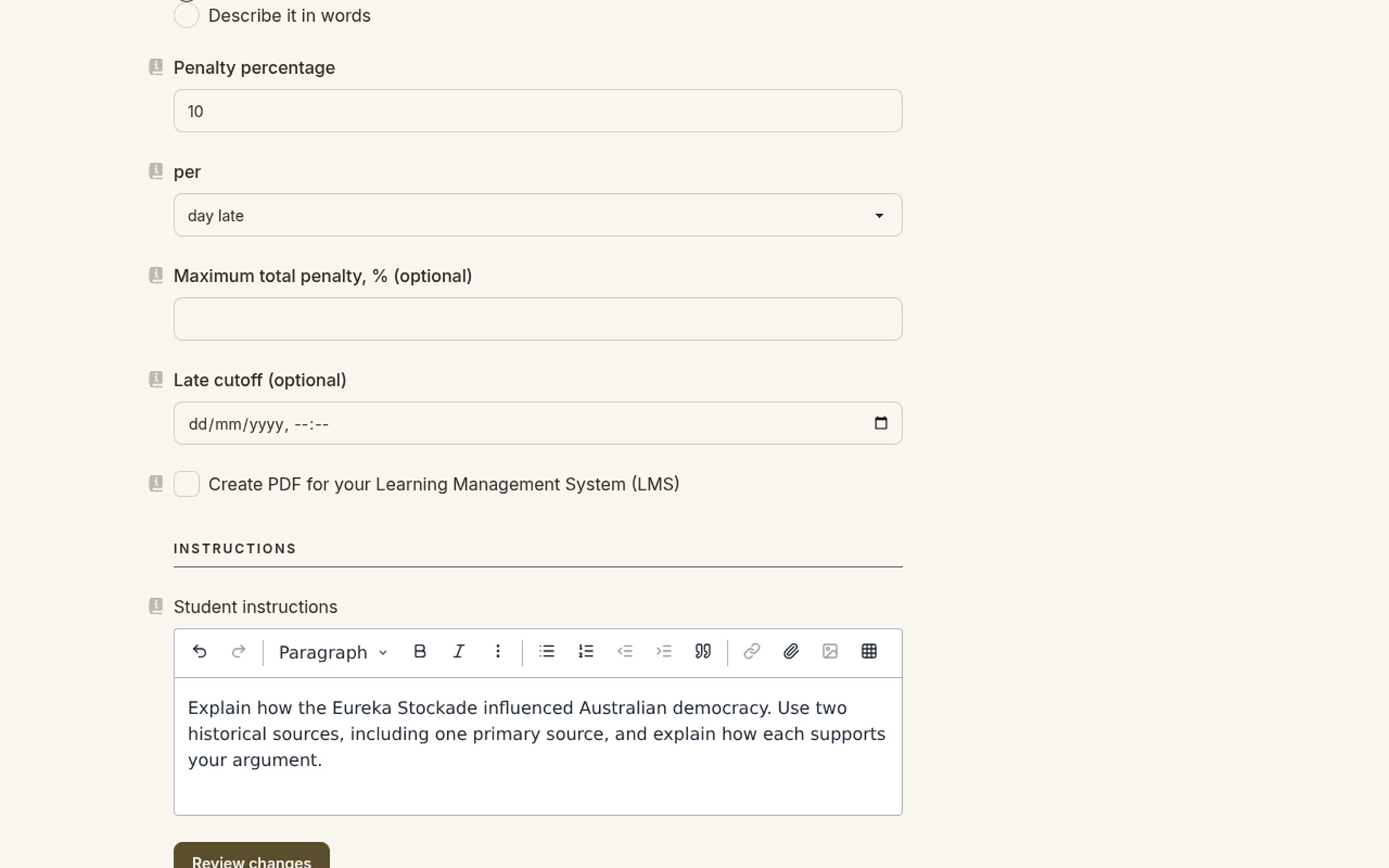
Scroll to Student instructions and replace the text with your clarification. Say what students should do and what their response should include.
Leave the dates and other rules unchanged when you only need to clarify the task.
3. Review who receives the change
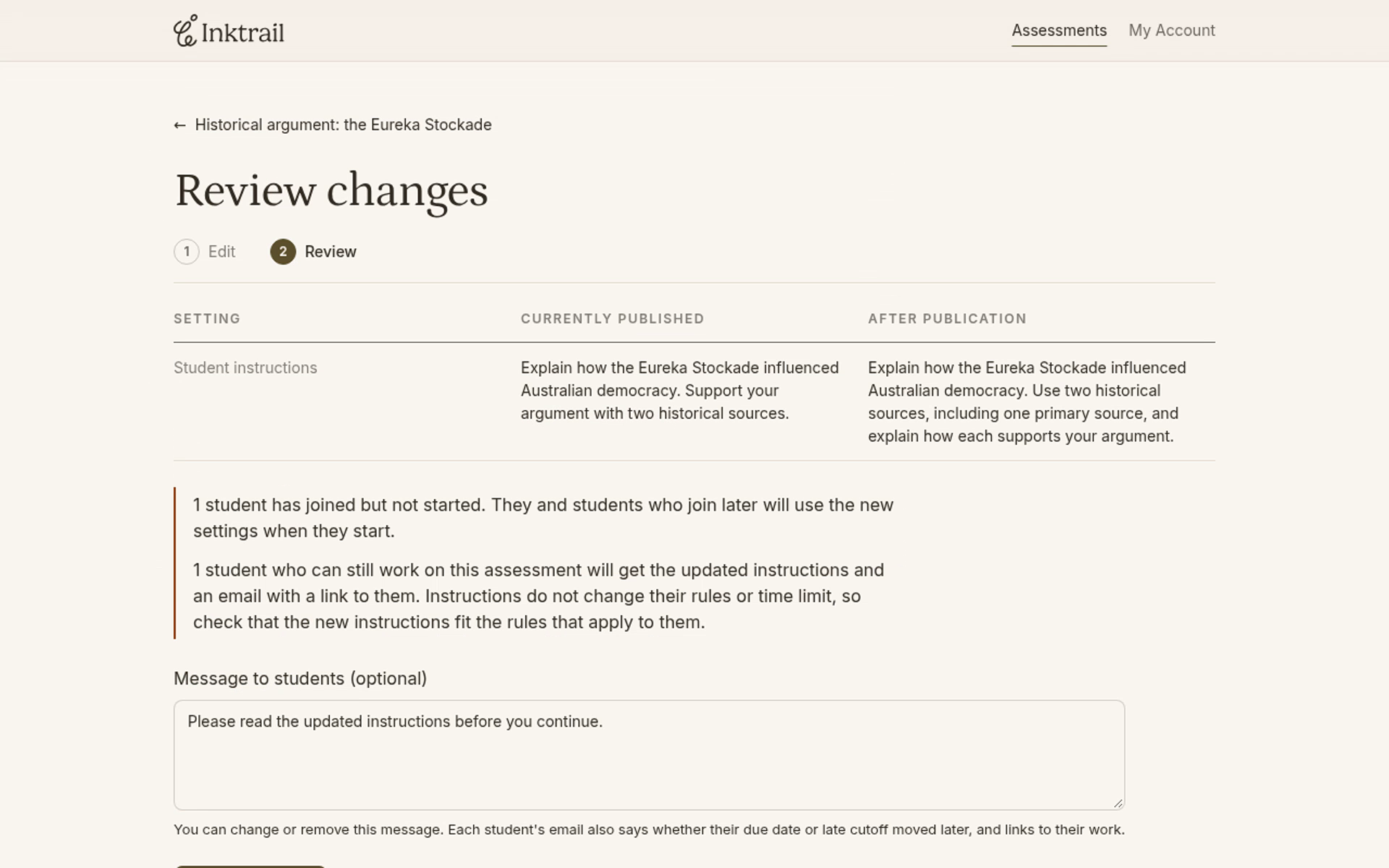
Select Review changes. Compare the old and new instructions, then read the effects below them.
In this example, the student who has not started will use the new settings when they start. The student with an open attempt will receive the updated instructions and an email linking to them. Instructions do not change that attempt's rules or time limit: check that your wording still fits those rules.
In Message to students (optional), replace the suggested message if you need to explain what changed. Keep it short and distinguish the clarification from any unchanged rules or deadline.
4. Publish the update
Select Publish updates. The assessment page shows the new revision, rev.2 in this example, and the changed instructions. The open attempt receives the instructions with your message; its starting rules and saved writing remain intact.