Sign out another device
You can see where your Inktrail account is signed in and end a session on a device you no longer use, while staying signed in on this one.
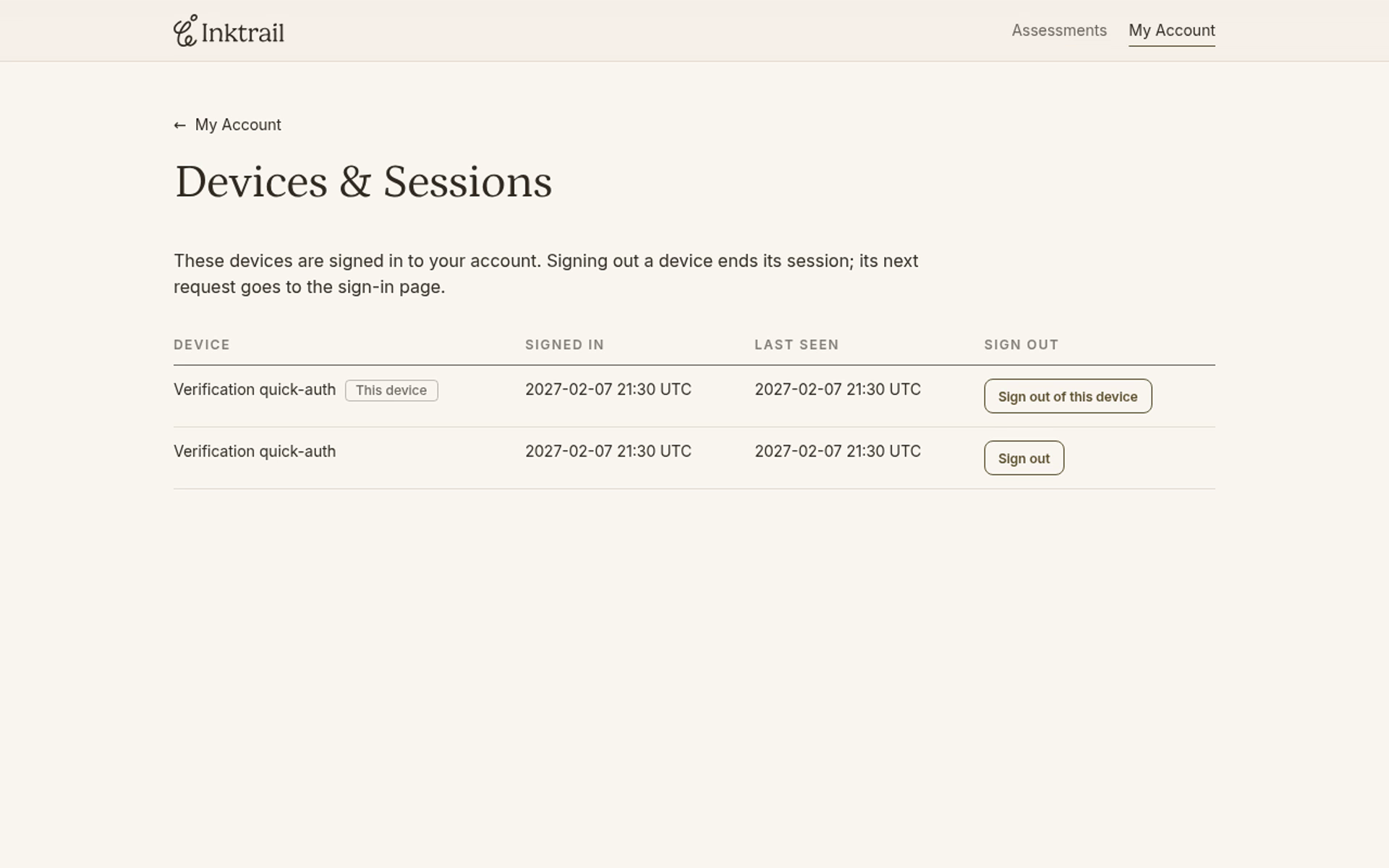
Start signed in on Your Assessments. This example shows an account signed in on two devices.
1. Find your signed-in devices
Select My Account in the top navigation.
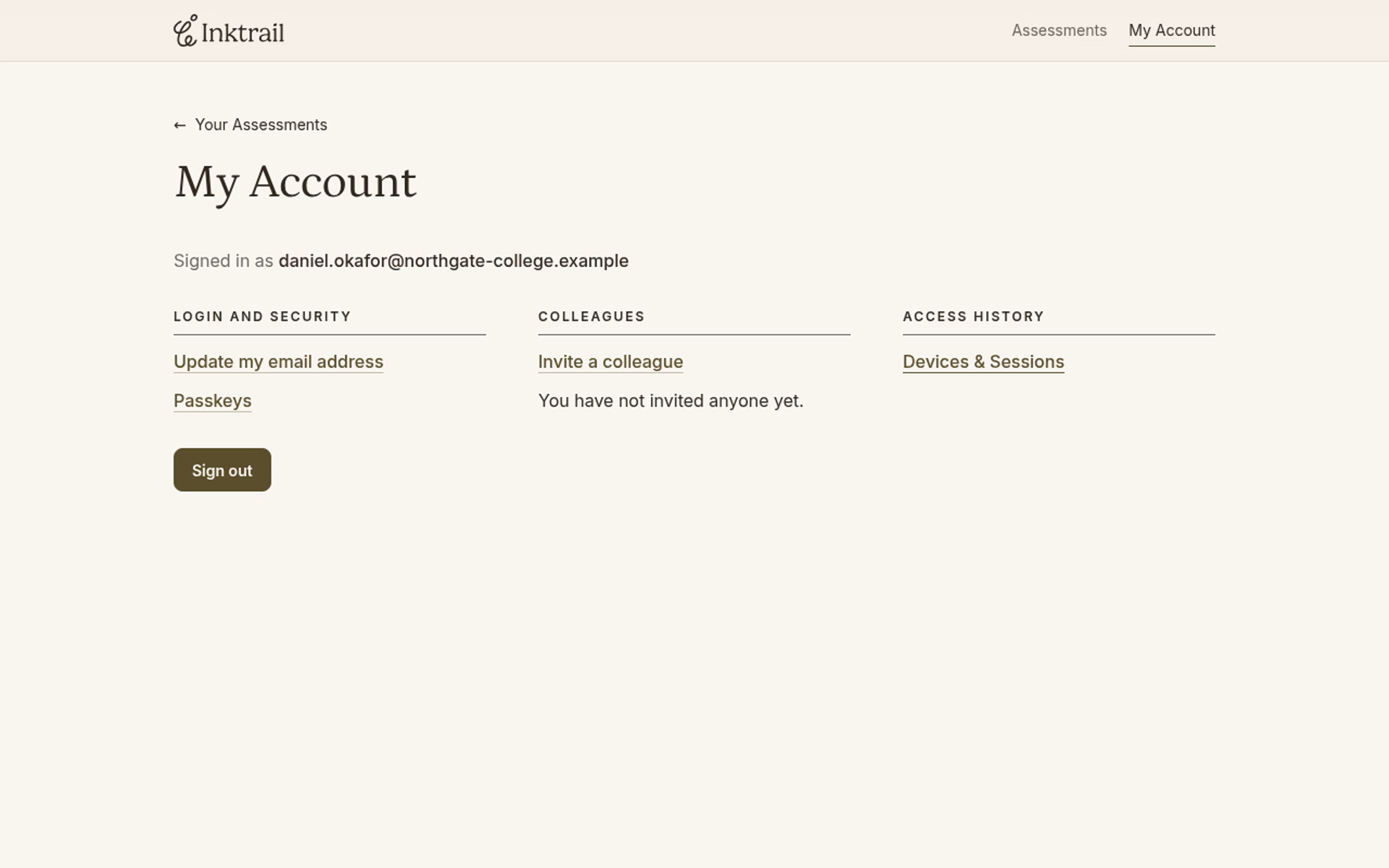
Under Access history, select Devices & Sessions. The table lists each device, when it signed in and when it was last seen. The times are shown in UTC. The This device label identifies the browser you are using now.
These screenshots come from a test account, so both devices show a test name; your own list will name your browsers.
2. Sign out the other device
Find the row for the device you want to stop using and select its Sign out button. Do not choose Sign out of this device if you want to keep using your current browser.
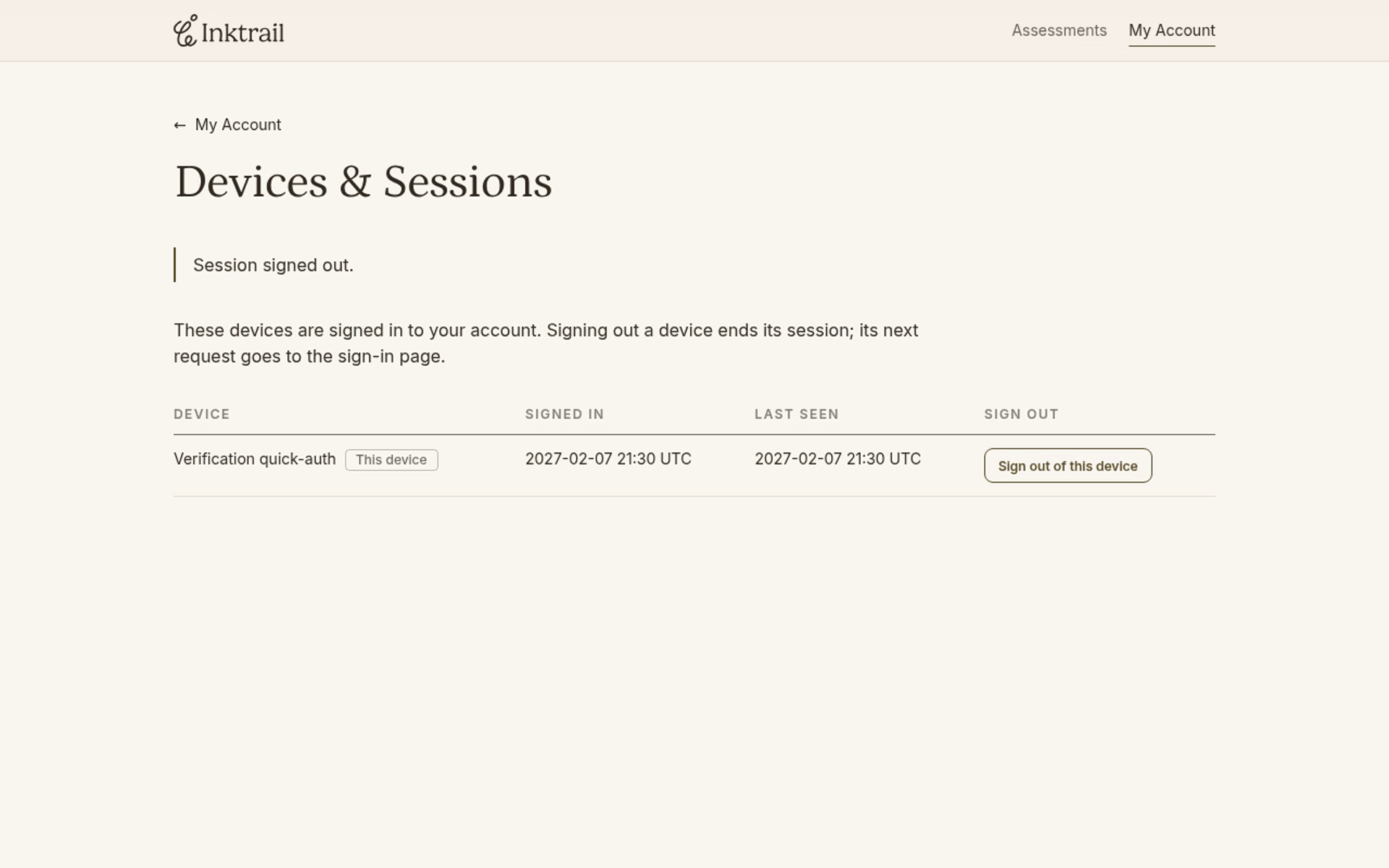
The page shows Session signed out., and the other device disappears from the list. You stay signed in on this device. The other device goes to the sign-in page on its next request.