Join your first assessment with a code
Use the code your teacher gives you to sign in and add an assessment to your works. You can then find it again when you are ready to write.
You need your student email, access to its inbox, and your teacher's assessment code. This example uses Priya Sharma joining a persuasive essay assessment that is already open.
1. Enter your student email and code
Open the student login page. Under Your student email, enter your school email address and select Send me a login link.
Because this is your first sign-in, you will see You need an assessment code to continue. The Assessment code field appears below your email. This is the next step, not a failed account setup.
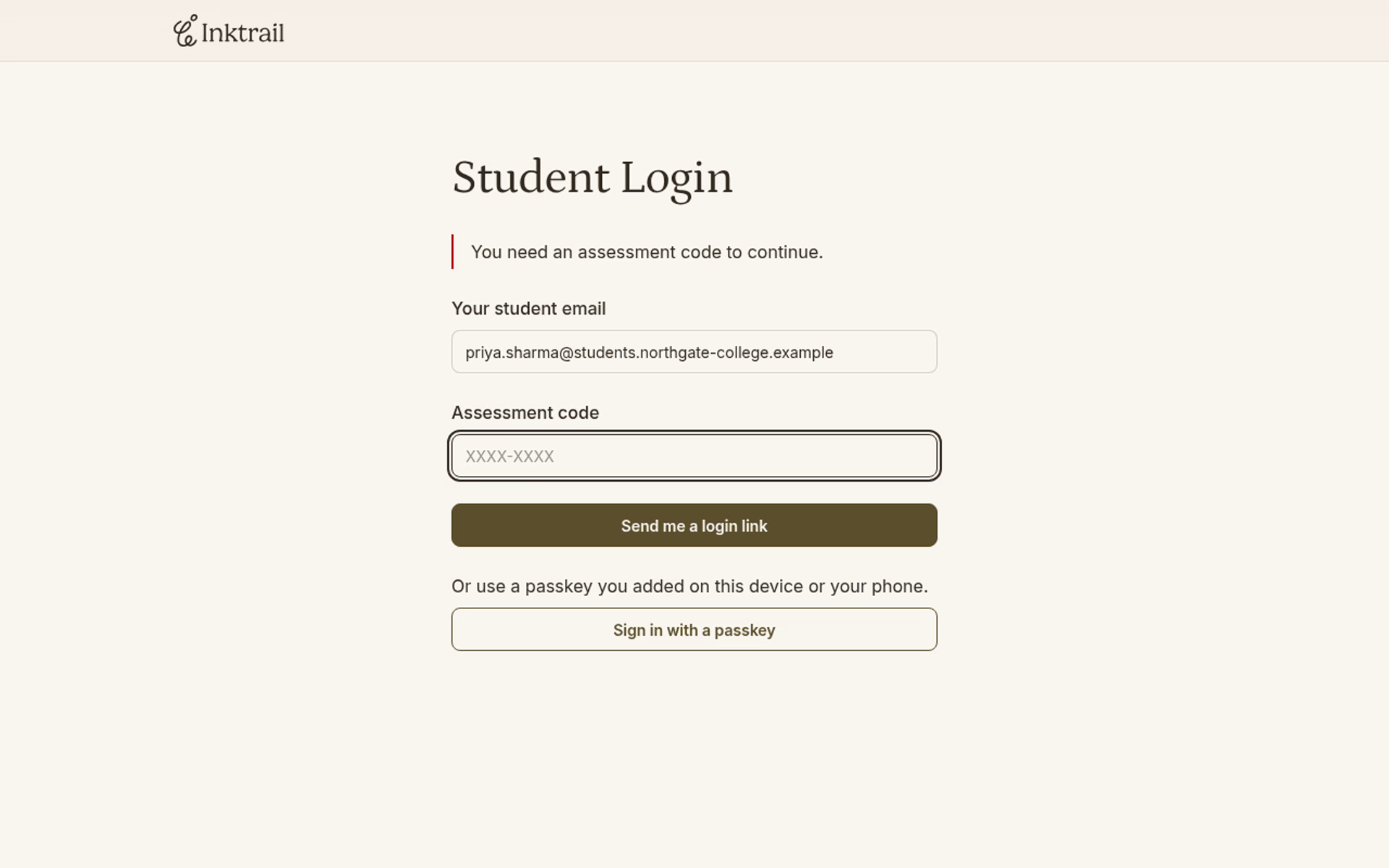
Enter the code in Assessment code, then select Send me a login link again. Use your teacher's code, not the code shown in this example.
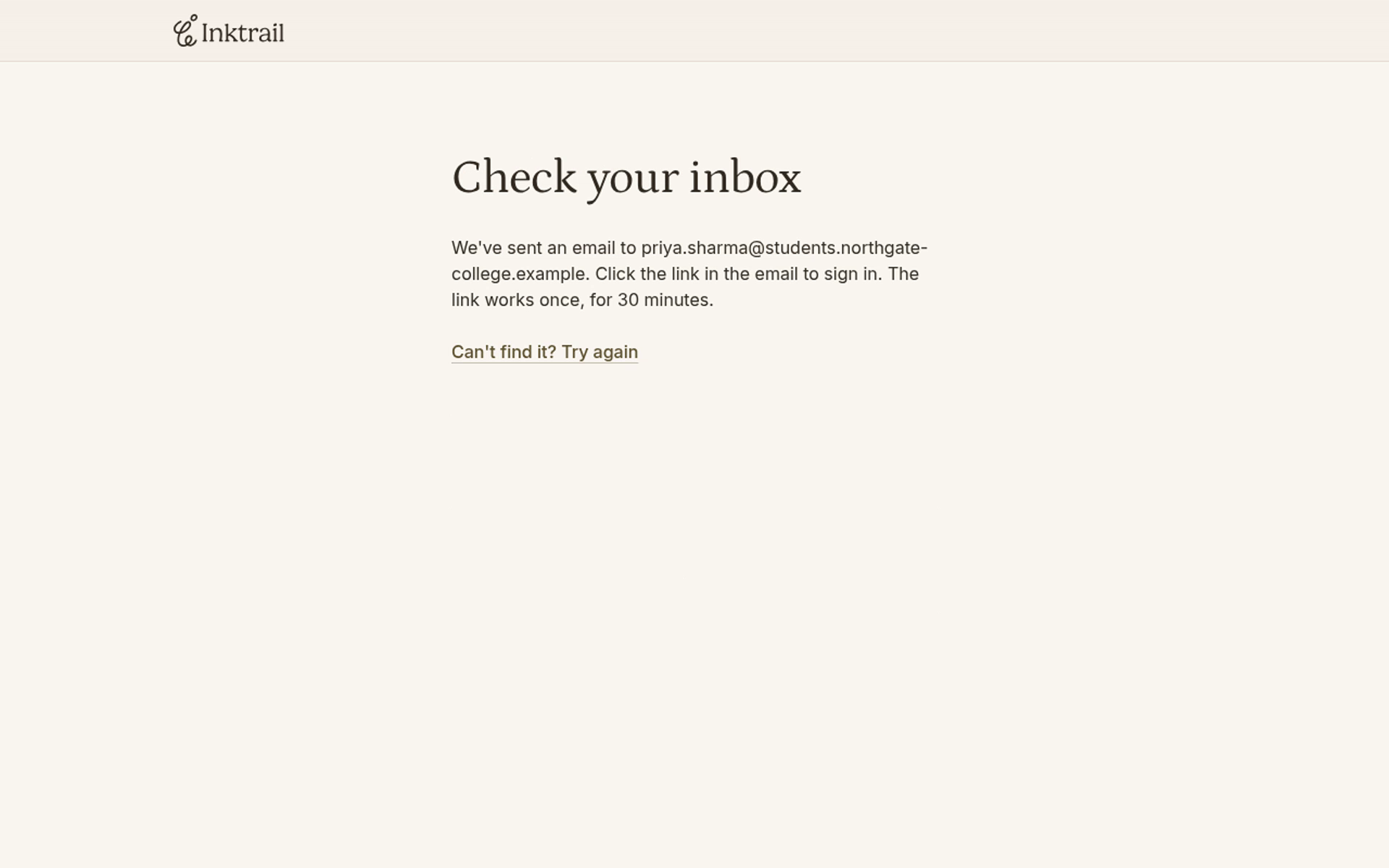
You will see Check your inbox with the email address you entered.
2. Sign in from your email
Open the login link in the email from Inktrail. On the confirmation page, select Sign in.
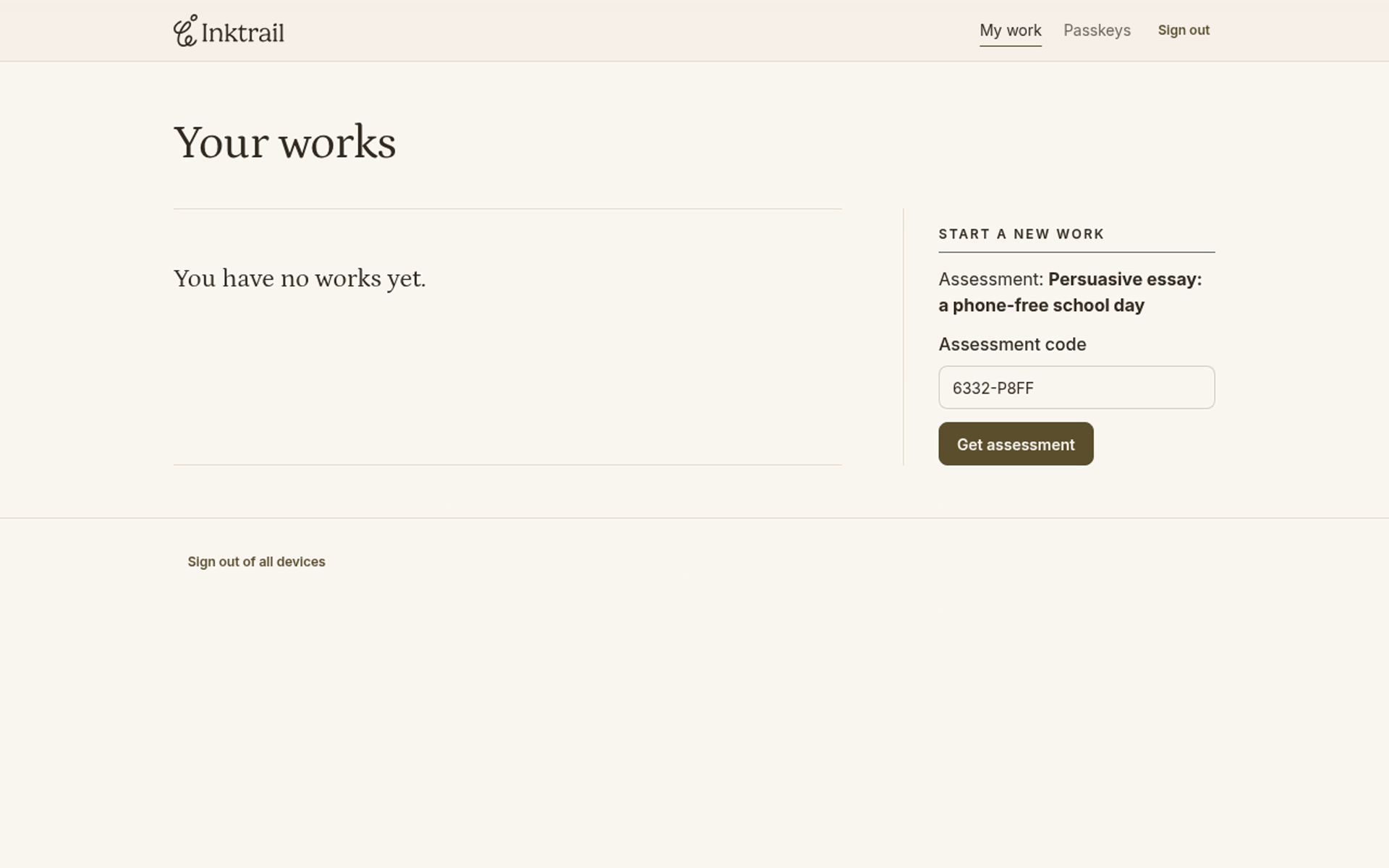
You will land on Your works. The assessment name appears above the code, which is already filled in. Check that the name matches the task your teacher gave you.
3. Get the assessment and find it again
Select Get assessment. The assessment page opens with Start writing available. You have joined the assessment, but you have not started writing.
Select My work in the top navigation to return to your list. Your assessment is now listed as Not started.
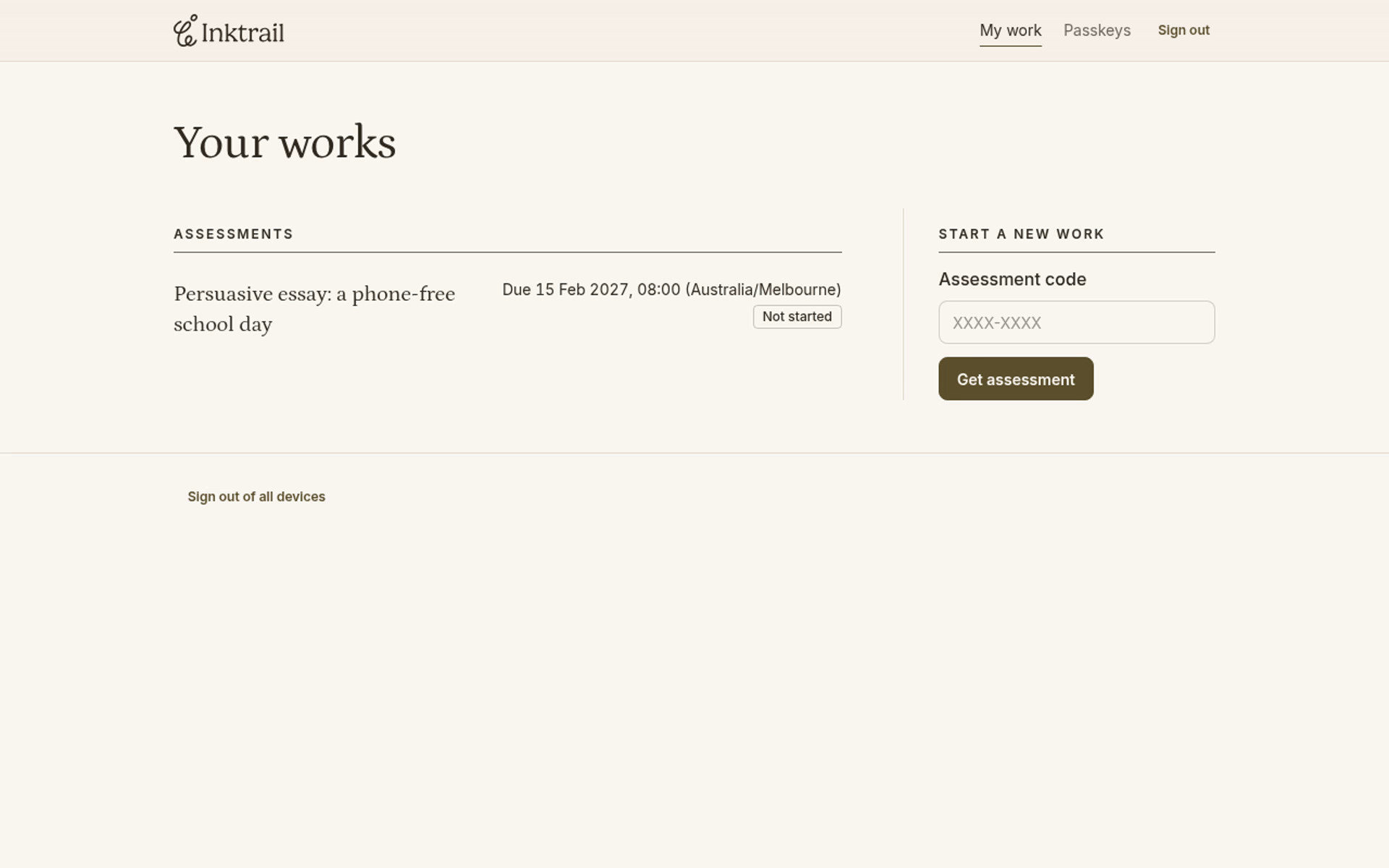
You can now sign in and find your assessment in Your works. When you are ready, open it and use Start writing. The next guide, Write and submit your work, covers writing and handing it in.