Download your PDF and confirm your LMS upload
If your teacher asks you to upload your work to your school's learning management system (LMS), download the PDF of your submitted work from Inktrail. After uploading it to your LMS, return to Inktrail to record your confirmation.
Start on Your works, after you have submitted your work in Inktrail. Follow these steps when the work's status is Upload to LMS.
1. Download your submitted work
Select your assessment on Your works, then select Upload to LMS. Your work is already saved in Inktrail, and your teacher can review it before you finish the LMS upload.
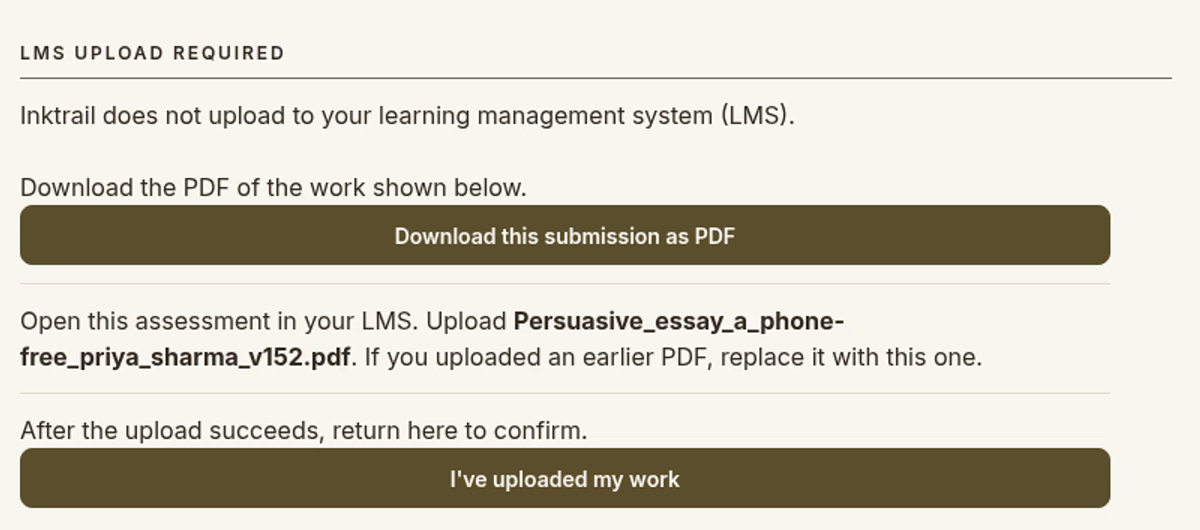
Select Download this submission as PDF. Keep the downloaded file ready to upload. This PDF contains the submitted version of your work.
2. Upload externally, then confirm in Inktrail
Open your school's LMS and upload the downloaded PDF as your teacher asked. Inktrail does not upload it for you. The external LMS step is not shown here.
After the upload succeeds, return to Inktrail and select I've uploaded my work.
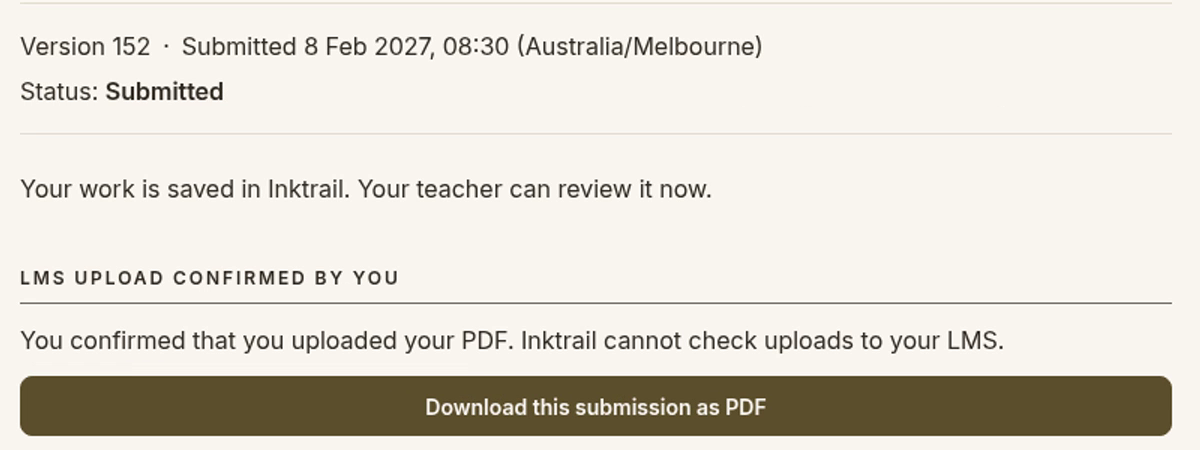
Your status changes to Submitted, and the page shows LMS upload confirmed by you. This records your own confirmation; Inktrail cannot check uploads to your LMS.