See an educator's account and return to admin
Impersonate an educator to see their assessment dashboard while helping with a support request, then return to your admin account.
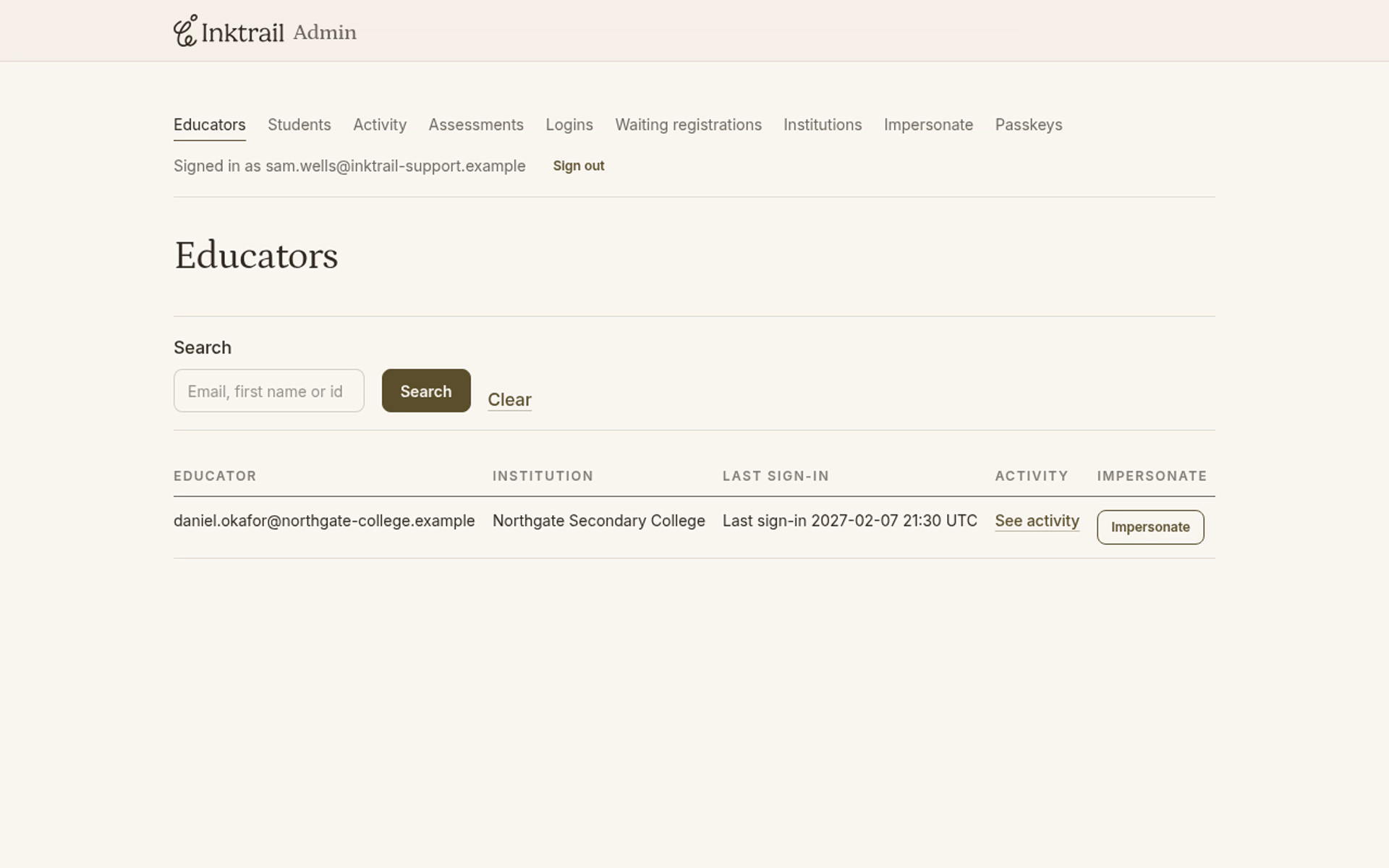
Start signed in to the admin app on Educators. You need an active admin account. This example uses Sam Wells helping Daniel Okafor at Northgate Secondary College.
1. Find the educator
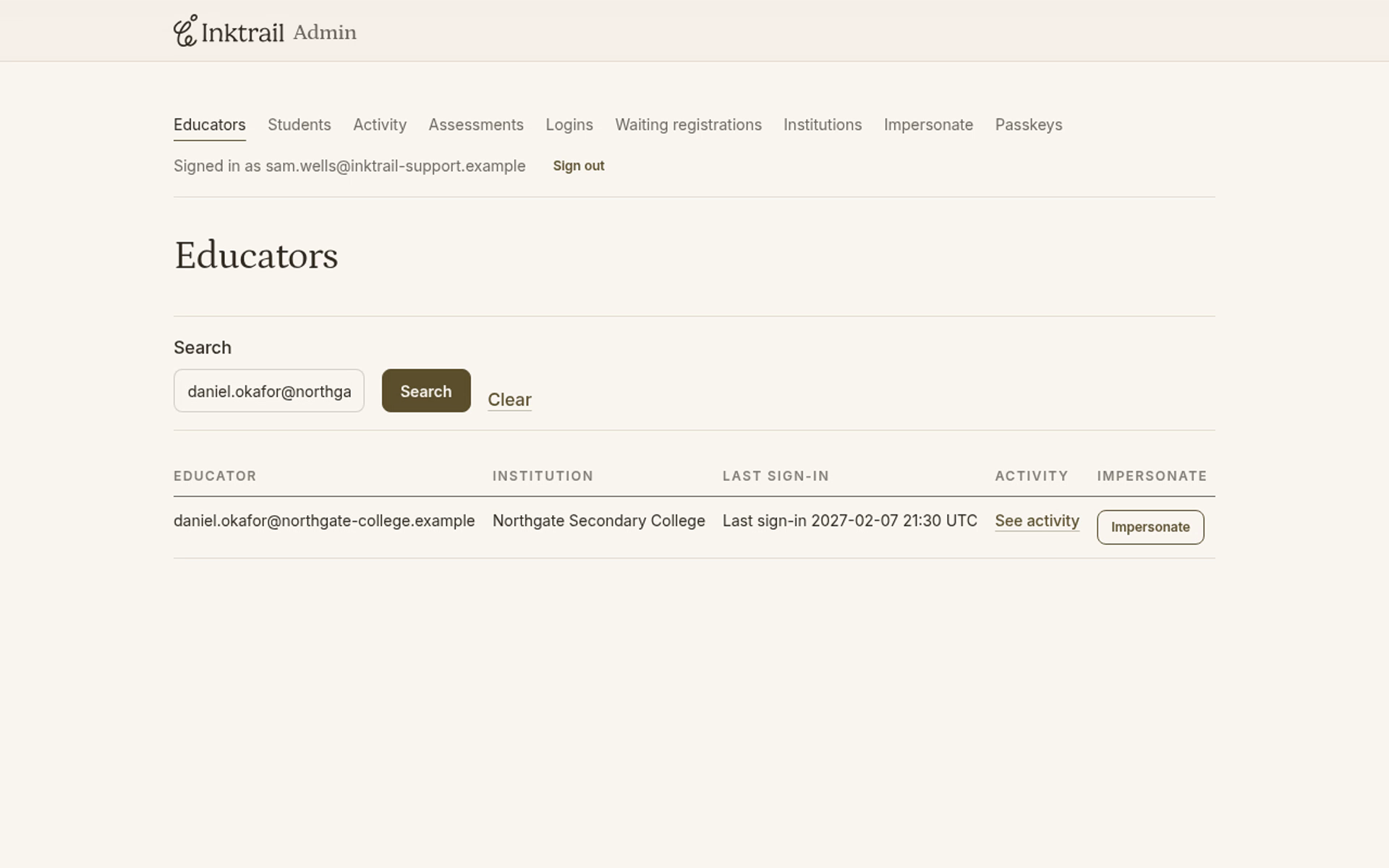
In Search, enter the email address of the educator you are helping and select Search.
Check the address and institution in the matching row against the support request before continuing.
2. Open the educator's view
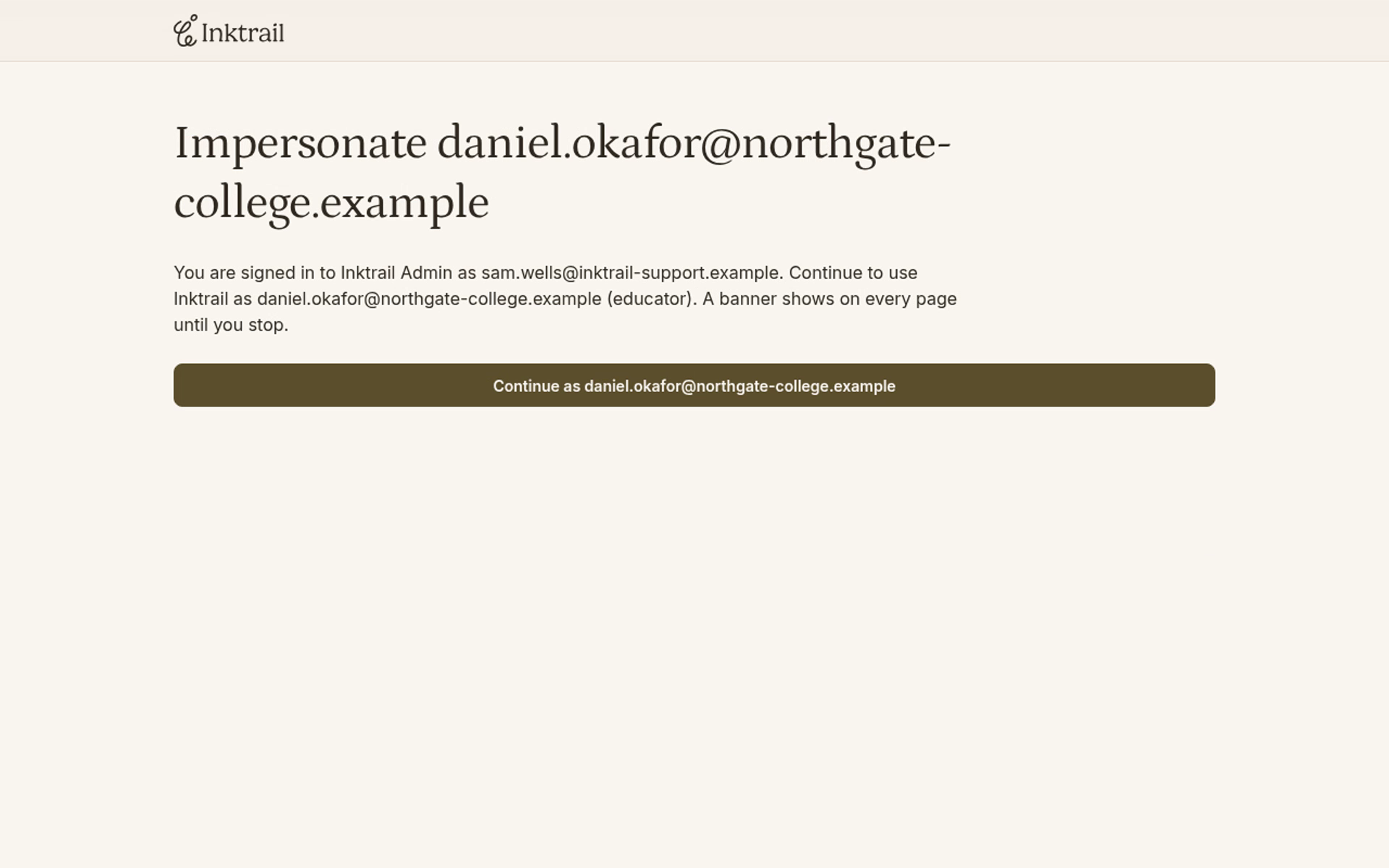
Select Impersonate in that educator's row. On the confirmation page, check the address again, then select Continue as followed by that educator's email address.
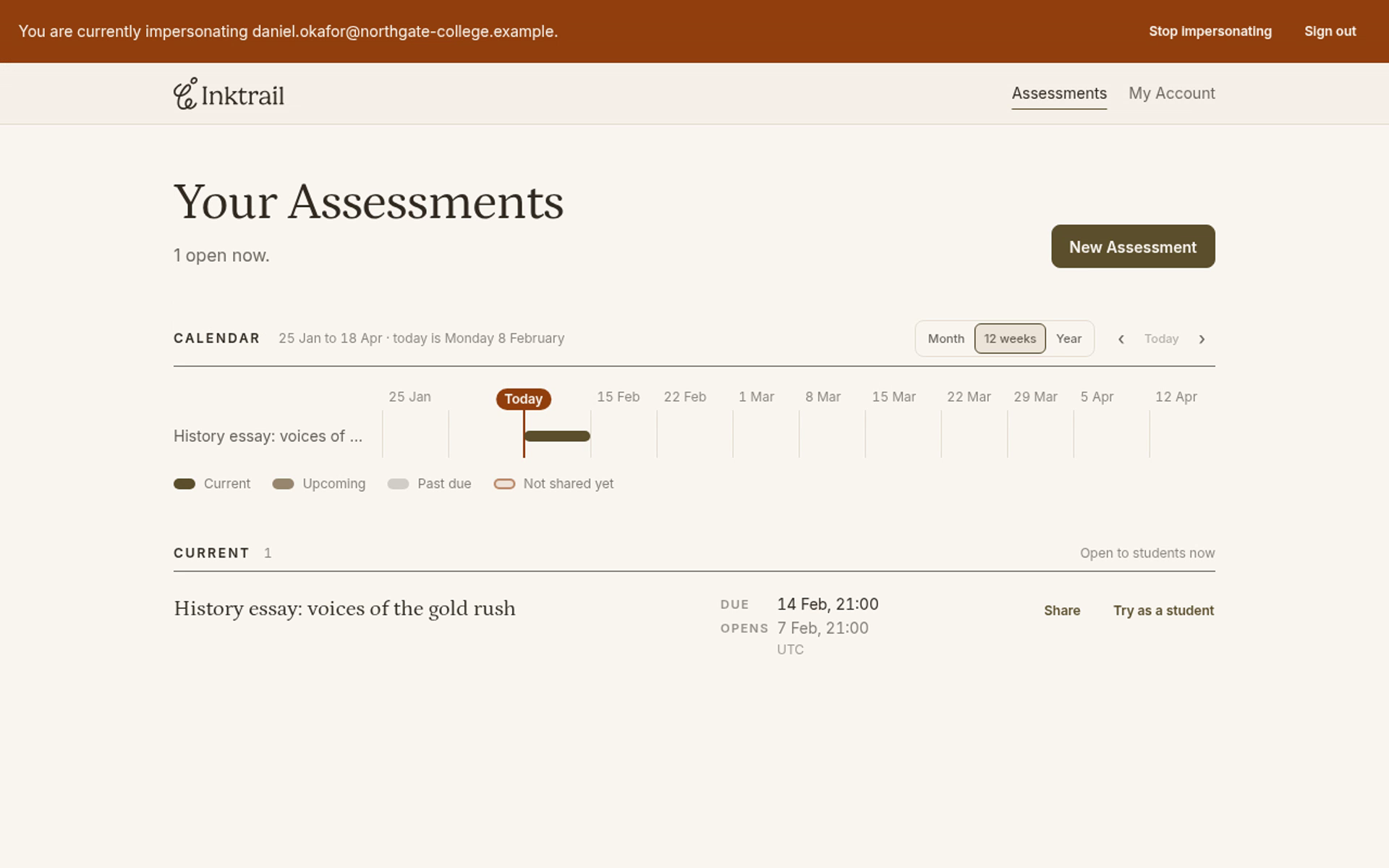
You arrive on Your Assessments. The banner at the top identifies the educator you are impersonating. In this example, Daniel's dashboard includes the assessment History essay: voices of the gold rush.
3. Return to your admin account
In the banner, select Stop impersonating. Use this control rather than Sign out when you want to stay signed in as the admin.
You return to Educators in the admin app. Check that Signed in as shows your admin email again; in this example, it shows sam.wells@inktrail-support.example. The impersonation session has ended.